Managing Your Projects
Create, rename, duplicate, and delete from the Projects page.
Create, rename, duplicate, delete. Four moves, all from the Projects page, and your project library stays exactly as tidy as you want it.
You know your way around the Projects page now. This lesson is about keeping it under control. Every project management move in Kilona happens right here, without opening a single editor. Let us go through them.
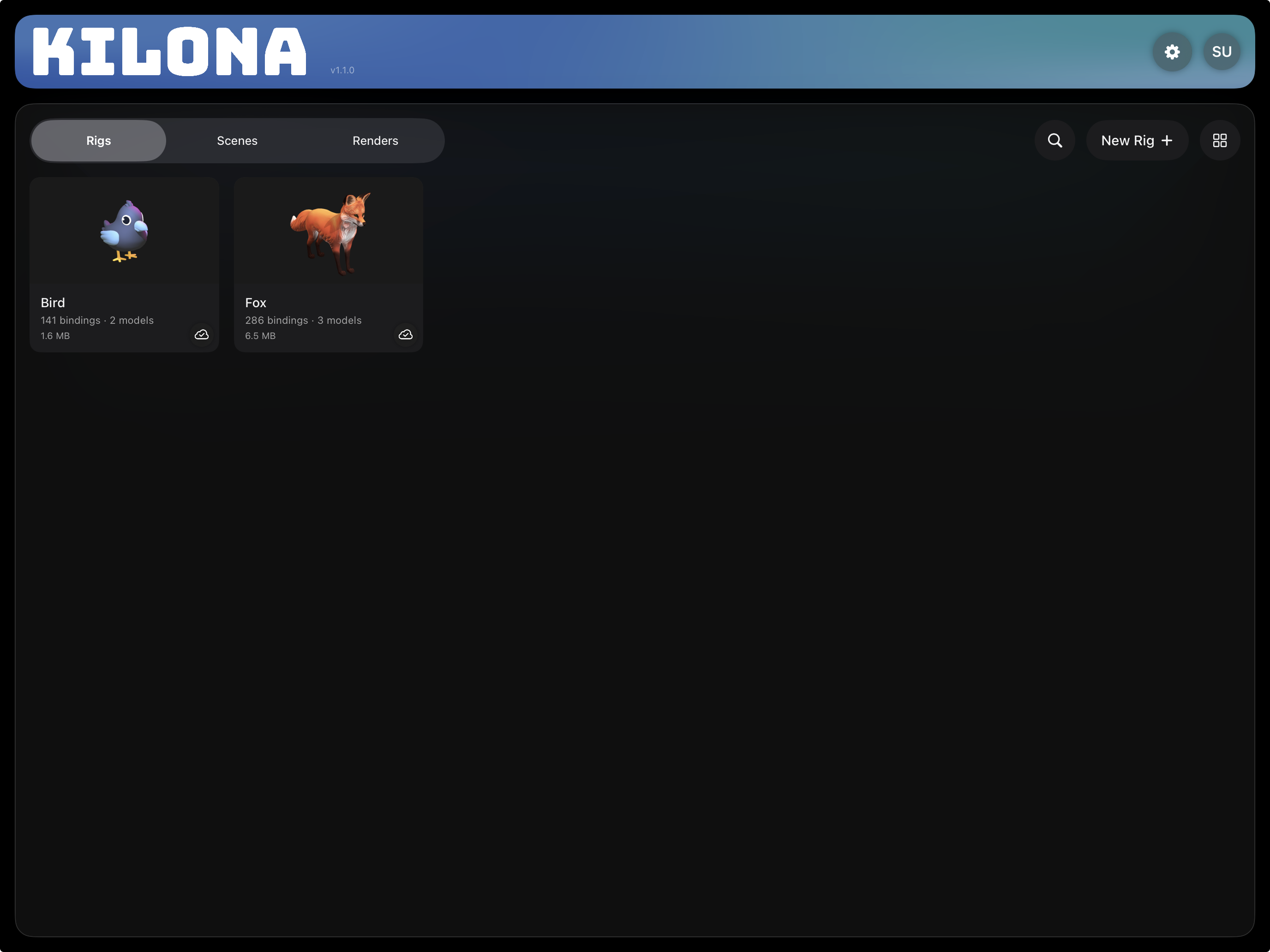
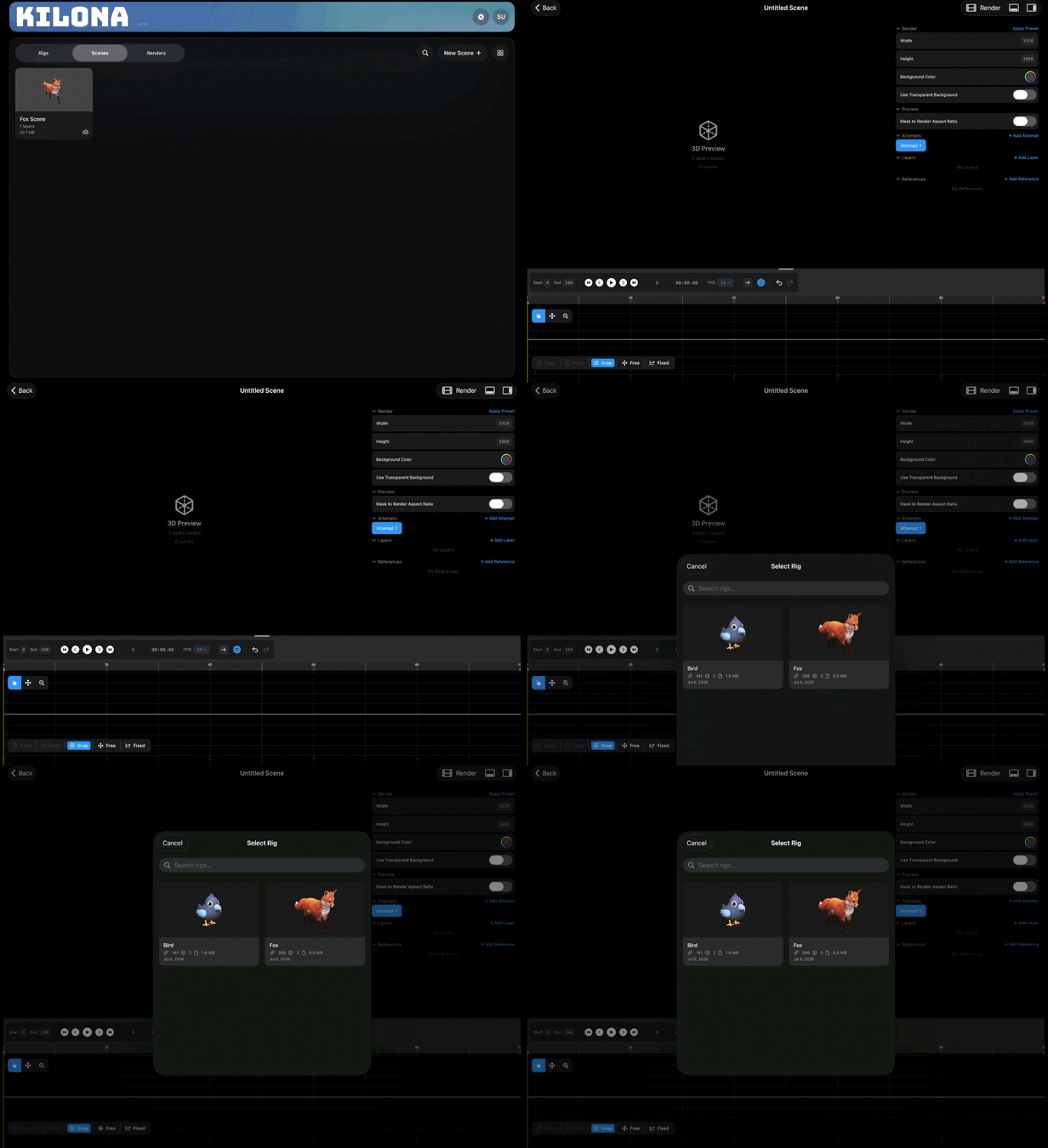
First, creating. On the Rigs tab, the new button reads New Rig. Tap it and Kilona creates a fresh rig and takes you straight into the rig editor. Switch to the Scenes tab and the same button now reads New Scene. The label always matches the tab you are on, so you always know exactly what you are about to make.
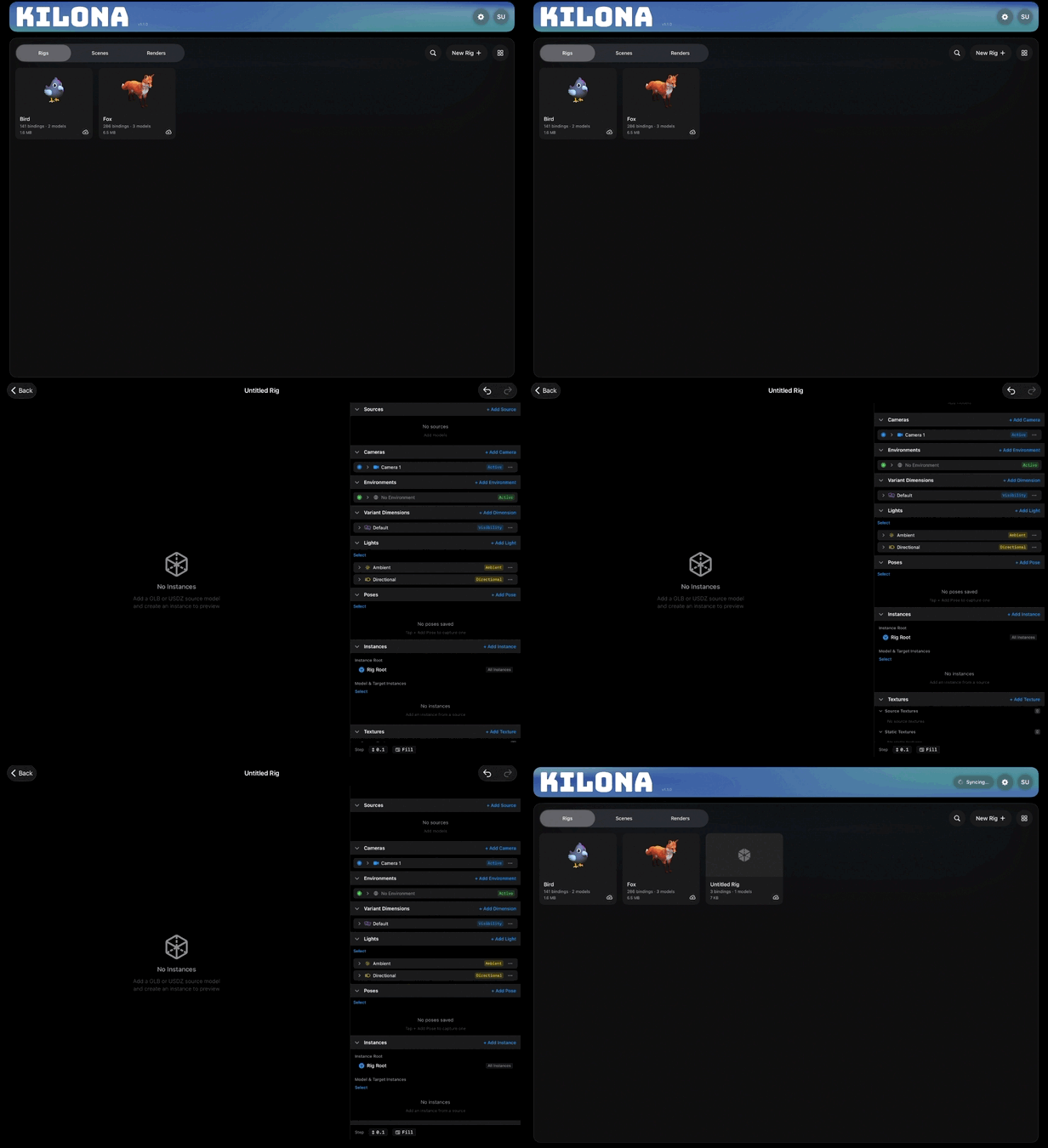
You may remember from the last lesson that the Renders tab has no new button. Renders are captured from scenes, so there is nothing to create here by hand. If you ever forget, the empty state on that tab points the way: open a scene and tap the film icon.
Now the rest of the moves, and they all start the same way: long-press a card. Press and hold any project and a context menu appears with everything you can do to it.
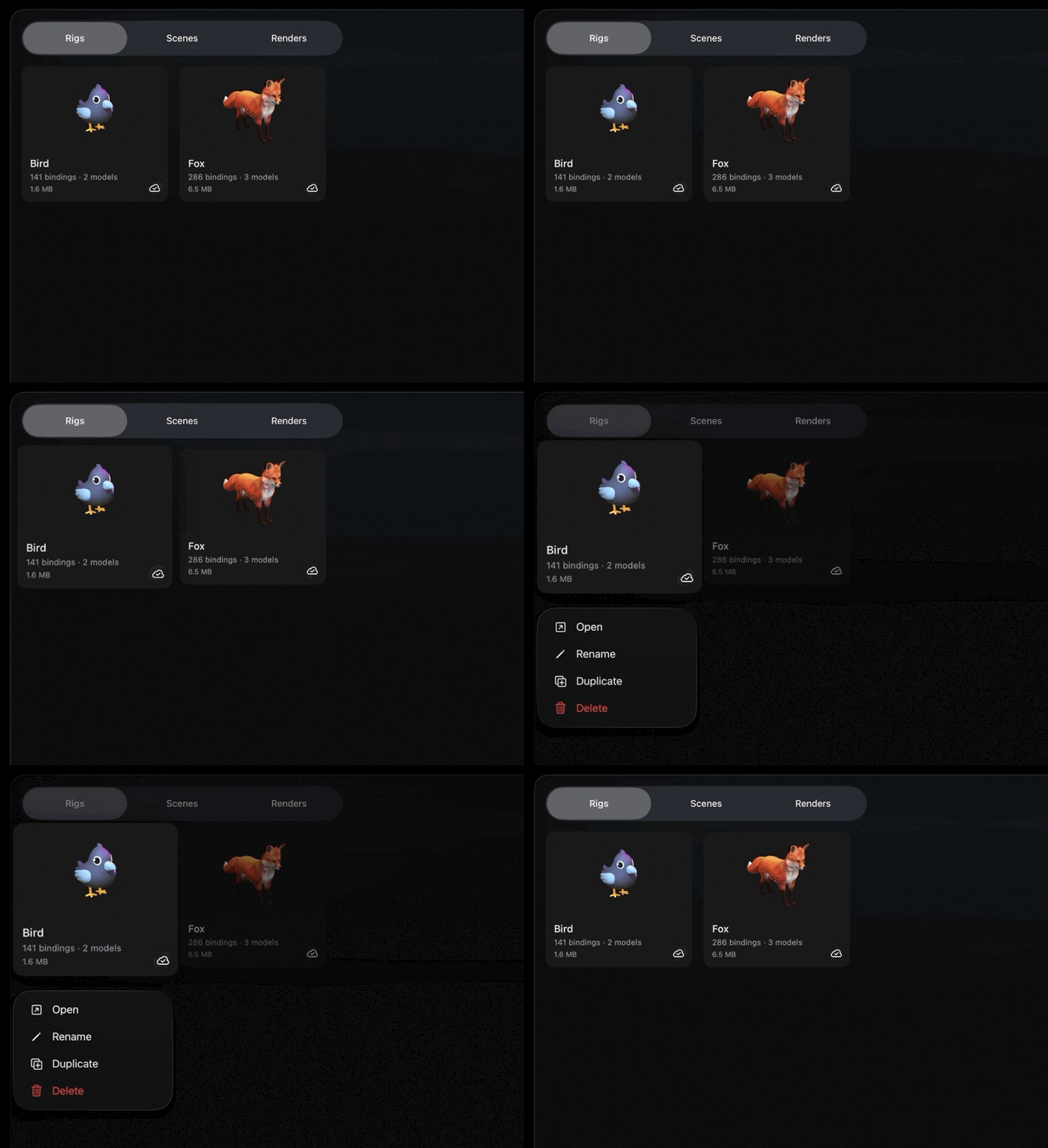
Open does what you expect. It is the same as tapping the card, and it takes you into the editor for that project.
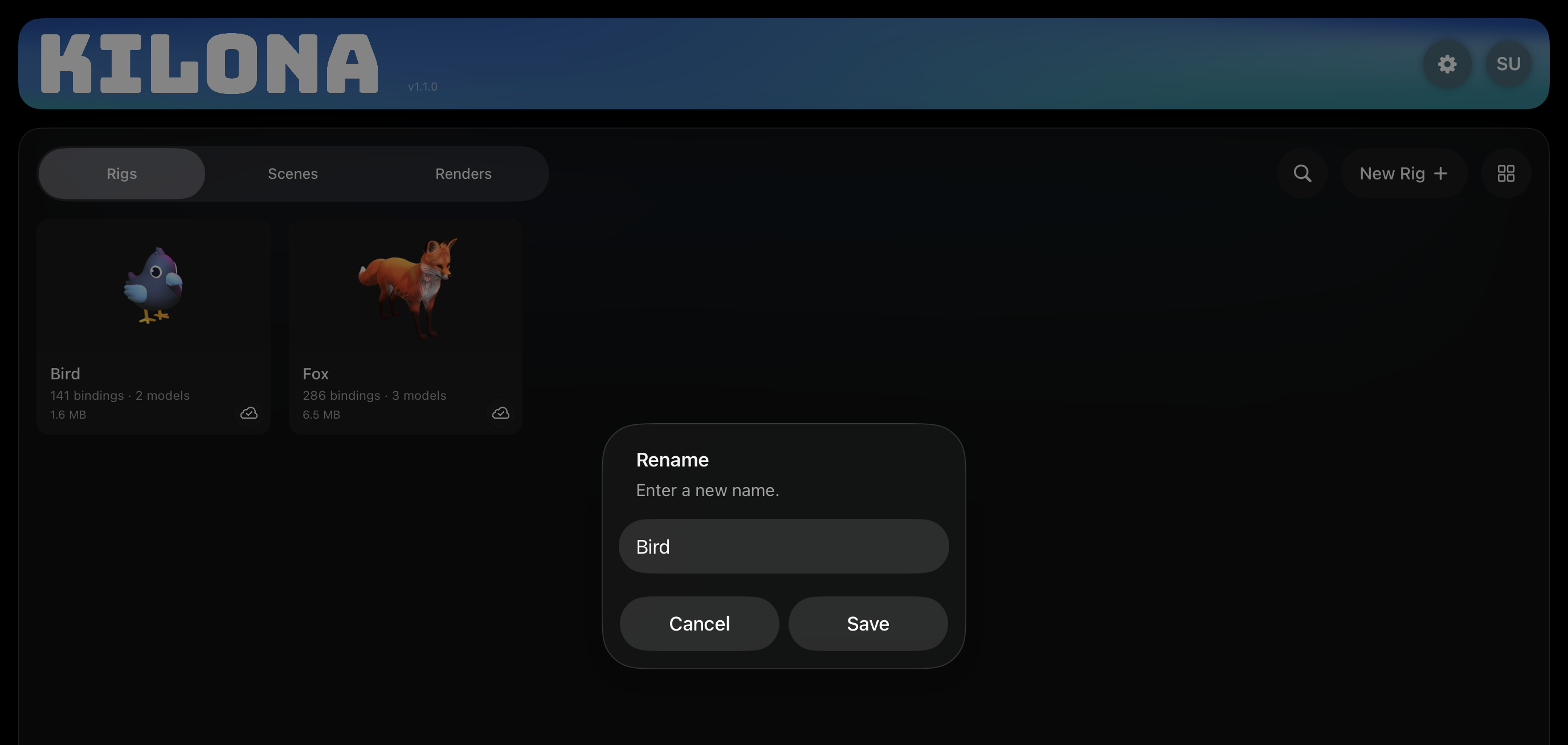
Rename lets you give the project a new name. Do this early and often. A rig called Robot Arm is easy to find with search. A rig called Untitled 7 is not. Your future self will thank you.
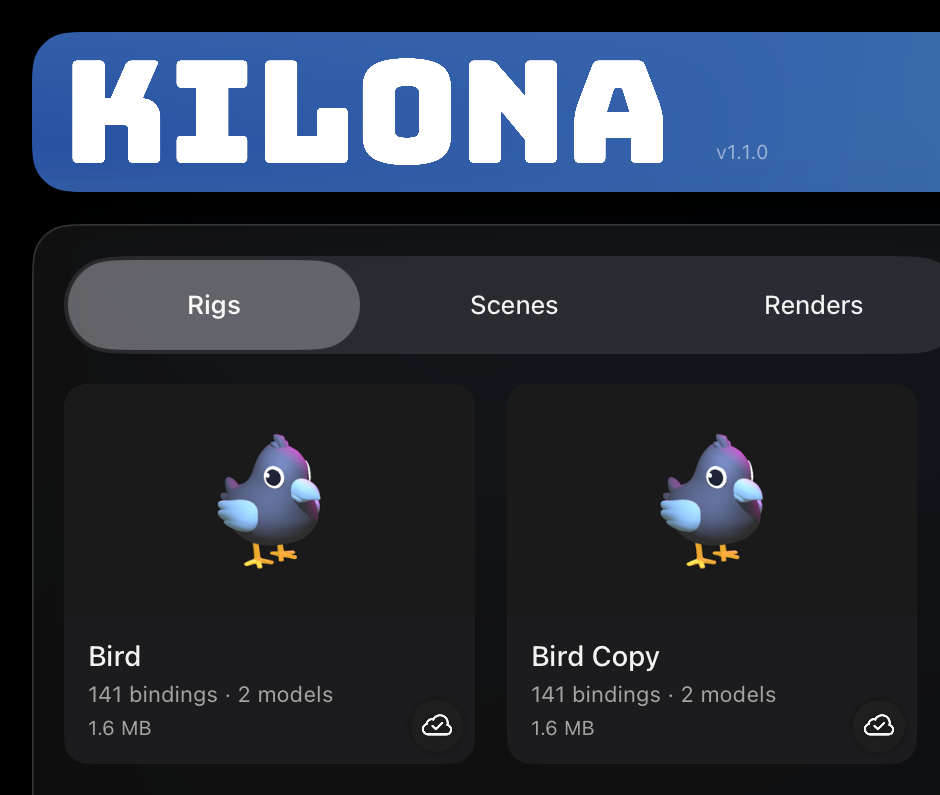
Duplicate makes a complete copy of the project. Here is the detail to remember: Duplicate appears on rigs only. It is perfect for experiments. Say your robot rig works and you want to try a wild variation without risking the original. Duplicate it, experiment freely, and the original stays safe. Scenes and renders do not offer Duplicate in this menu.
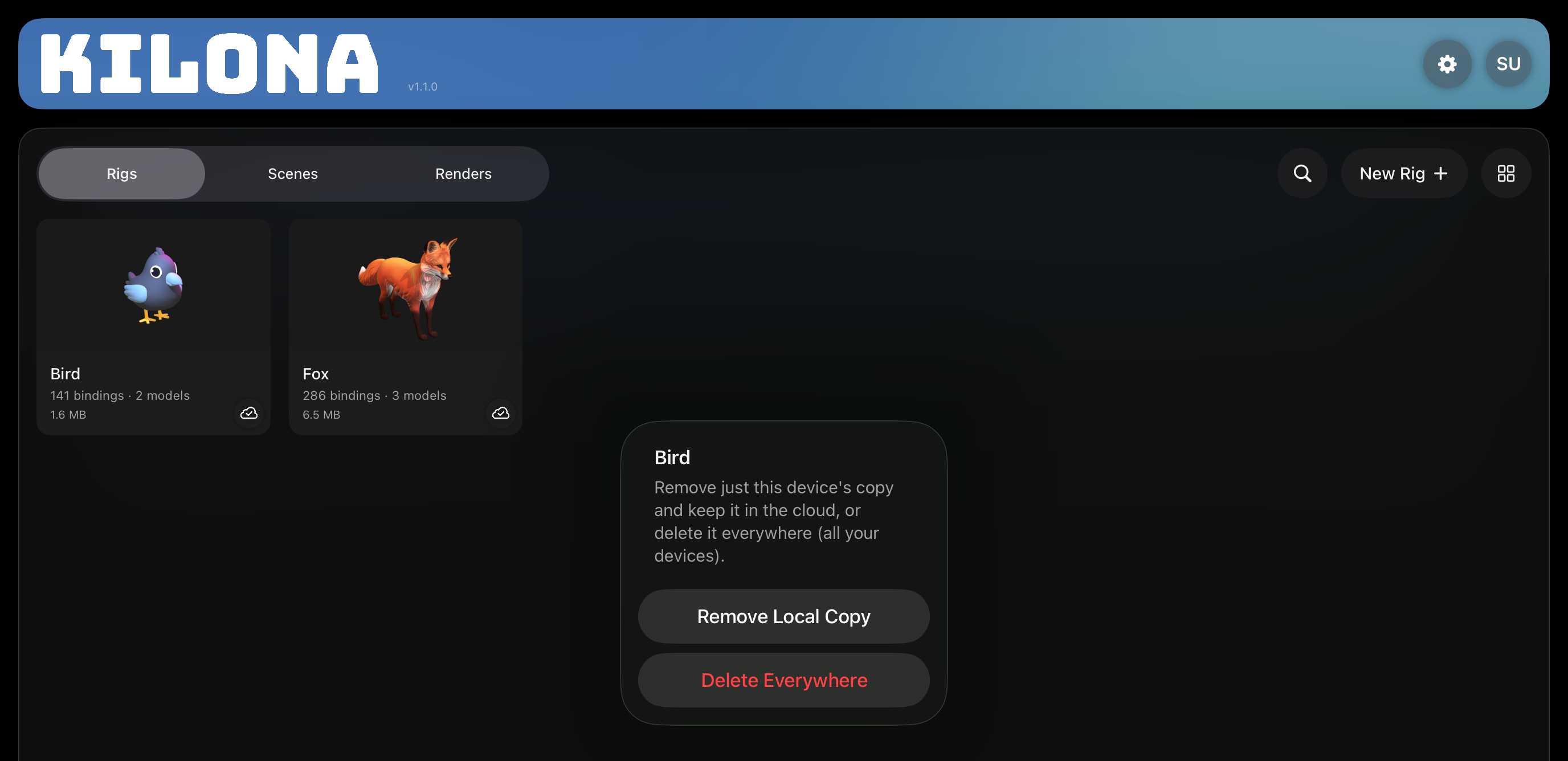
Press and hold also shows the Delete option, which lets you delete projects from your device.
One habit to take with you: the long-press is your friend everywhere in Kilona. When you wonder what you can do with something, press and hold it and see what the menu offers.
Recap
- The new button matches the tab: New Rig on Rigs, New Scene on Scenes.
- The Renders tab has no new button, because renders are captured from scenes.
- Long-press any card for the context menu: Open, Rename, Duplicate, and Delete.
- Duplicate is for rigs only, and it is the safe way to experiment.
- Delete removes a project from your device.