Projection
Field of View, plus Orthographic mode and Ortho Scale.
Two shots can stand in the exact same spot and feel completely different. That difference is the lens, and in Kilona the lens lives on the Projection tab.
So far you have placed the target and moved the camera around it. The Projection tab changes something else: not where the camera is, but how it sees. Open your camera and switch to Projection.
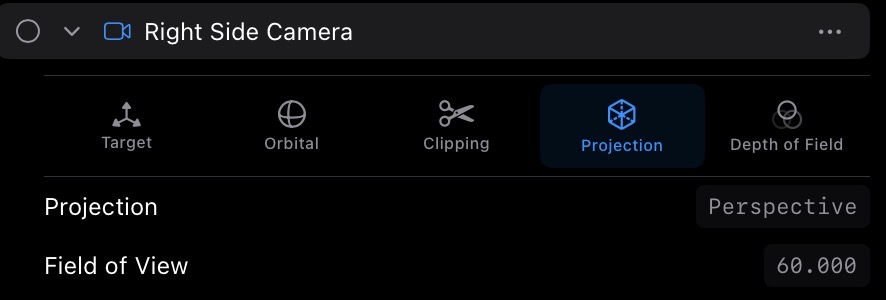
The first control is Field of View. Field of View is how wide a slice of the world the camera takes in, and it is the closest thing here to choosing a lens. Drag the value up and the view gets wider: more of the scene fits in frame, and nearby objects start to stretch and exaggerate. That is the energetic, slightly distorted feel of a wide lens. Drag it down and the framing gets tight: the camera sees a narrow slice, depth compresses, and the shot feels calm, flat, and long-lens.
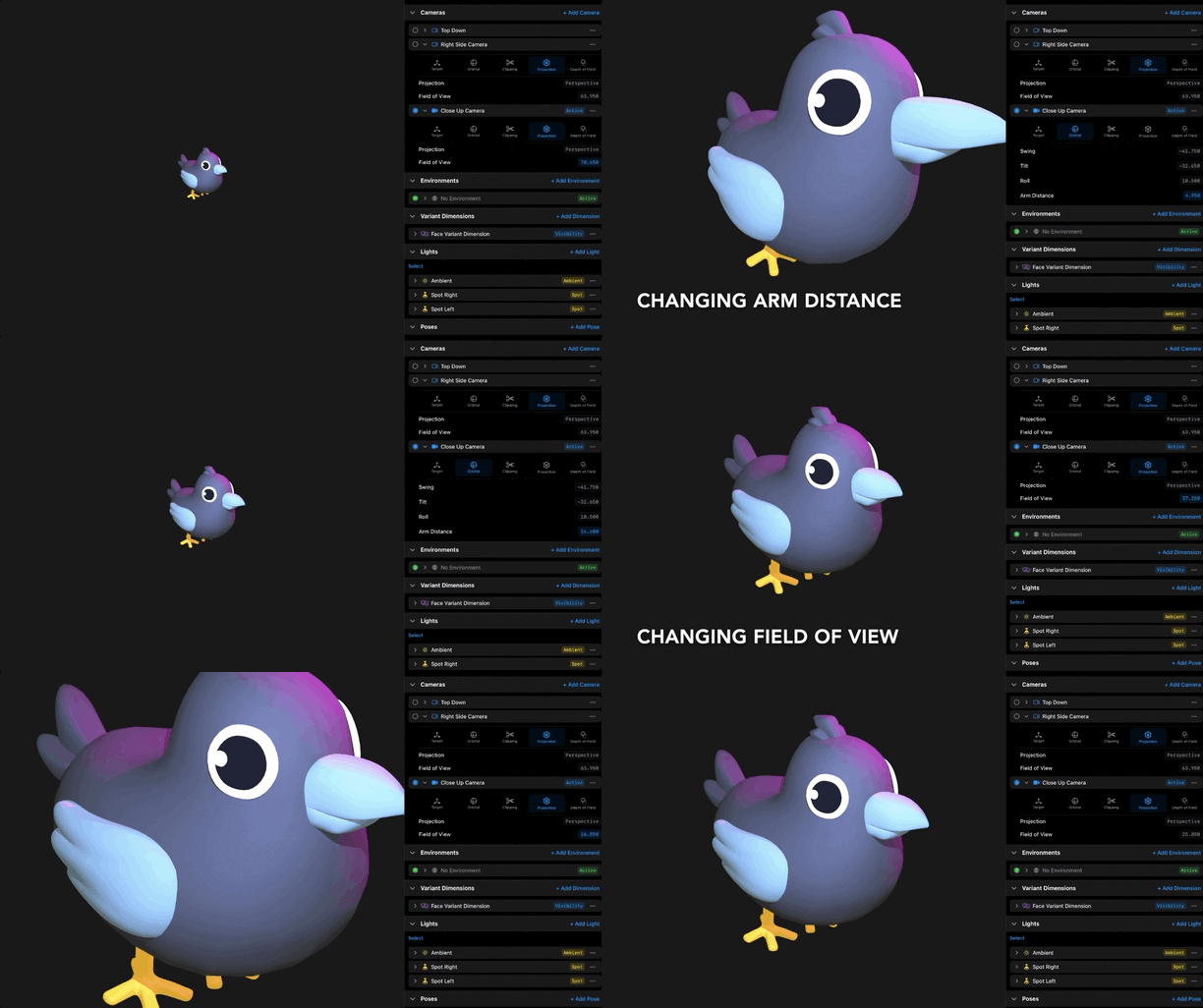
Here is the trick that makes Field of View interesting: pair it with Arm Distance from the Orbital tab. A wide Field of View up close and a narrow Field of View far away can frame the subject at the same size, but they feel nothing alike. The close wide shot is dramatic and warped. The distant tight shot is composed and formal. Same subject, same framing size, different lens feel. When a shot feels off, this pairing is often the answer.
Below Field of View sits the Orthographic toggle, and this one changes the rules entirely. Flip it on. Orthographic means no perspective at all. Parallel lines stay parallel, and objects render at the same size whether they are near the camera or far from it. Depth stops shrinking things.
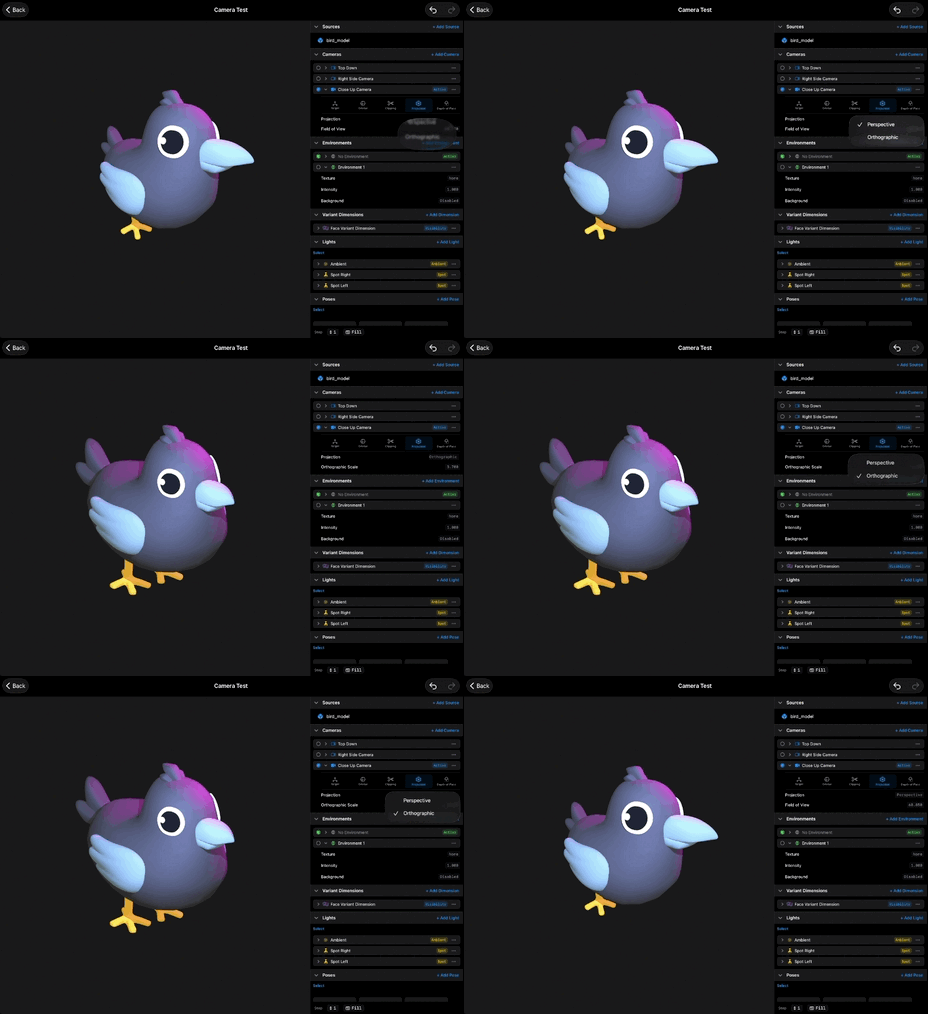
Why would you want that? Two big reasons. First, technical shots. Product lineups, diagrams, floor plans, anything where you need honest proportions and nothing skewed by distance. Second, stylized shots. That clean, flat, almost illustrated look you see in isometric game art comes from exactly this: an orthographic camera at an angle.
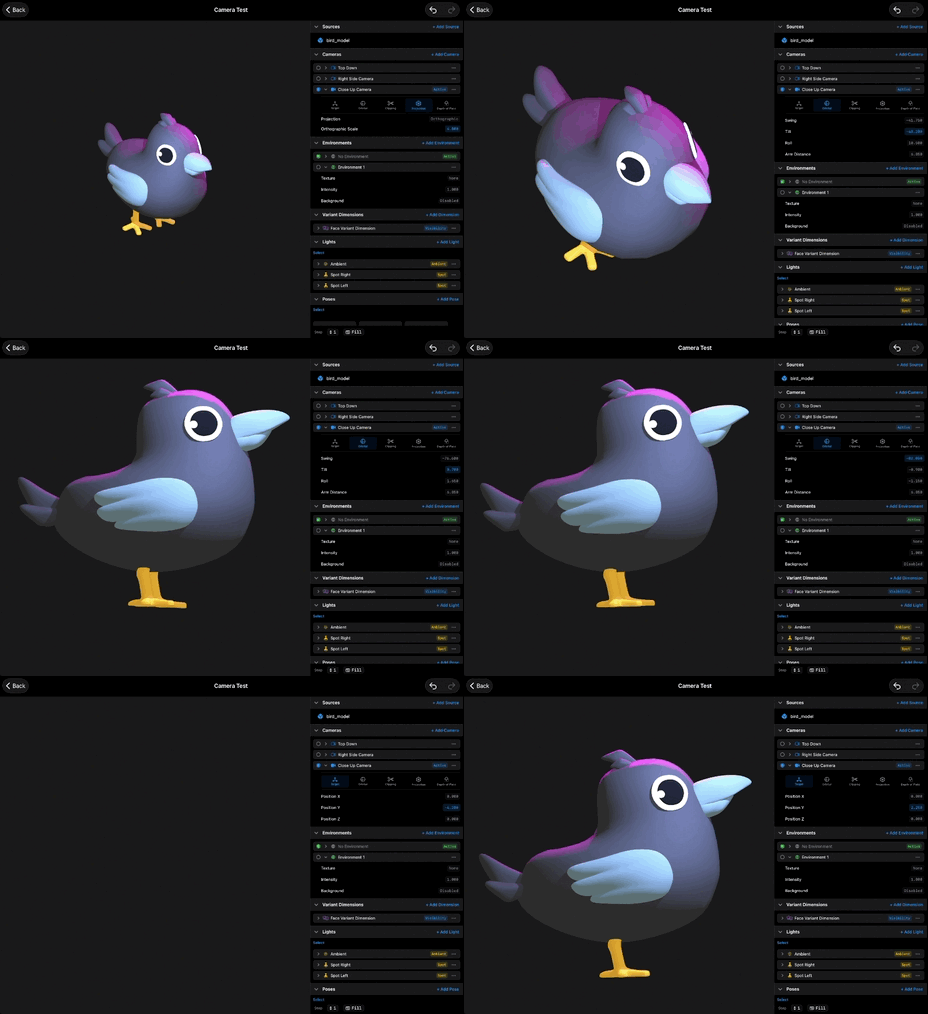
With Orthographic on, Field of View stops meaning anything, because there is no perspective cone to widen or narrow. Instead you frame with Ortho Scale. Drag Ortho Scale up and the view zooms out, taking in more of the scene. Drag it down and the view closes in. Think of it as the size of the window the camera looks through.
Flip Orthographic off when you are done, and perspective comes right back. And as always: Field of View and Ortho Scale are camera properties, so both can be bound and animated in a scene. An animated Field of View gives you a zoom. That is its own lesson.
Recap
- Field of View sets how wide the camera sees: high is wide and dramatic, low is tight and compressed.
- Pair Field of View with Arm Distance to control lens feel at the same framing size.
- The Orthographic toggle removes perspective, so sizes stay constant regardless of depth.
- Orthographic is great for technical shots and stylized isometric looks, and you frame it with Ortho Scale.
- Field of View and Ortho Scale can be bound and animated in a scene.